New indication added to substances: 'CMR-suspect'
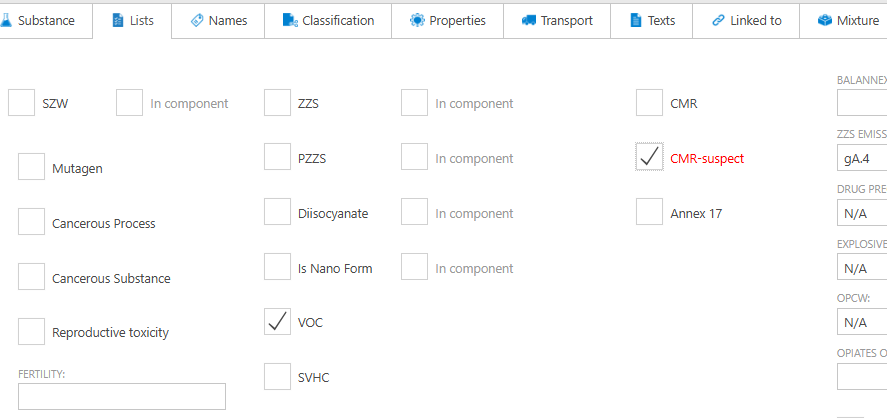
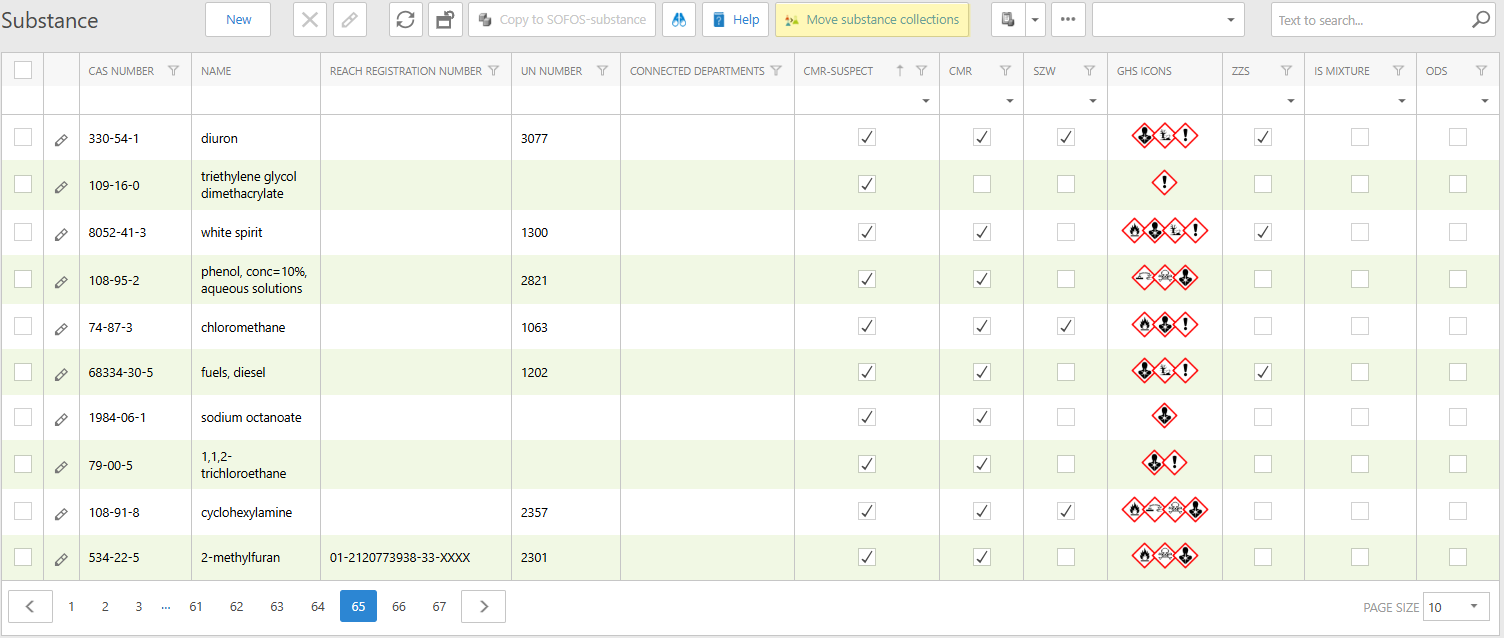
A new checkbox has been added to the “Lists” tab for substances: “CMR-suspect”. This checkbox is automatically selected when an H-phrase is linked to a “CMR suspected” indication (‘H341’, ‘H351’, “H361” and ‘H362’). At that point, the content of the checkbox can no longer be changed. If no H-phrases with CMR suspected indication are linked, the checkbox can be changed. When it is checked, the text next to the checkbox will be displayed in red (just like with the CMR checkbox).
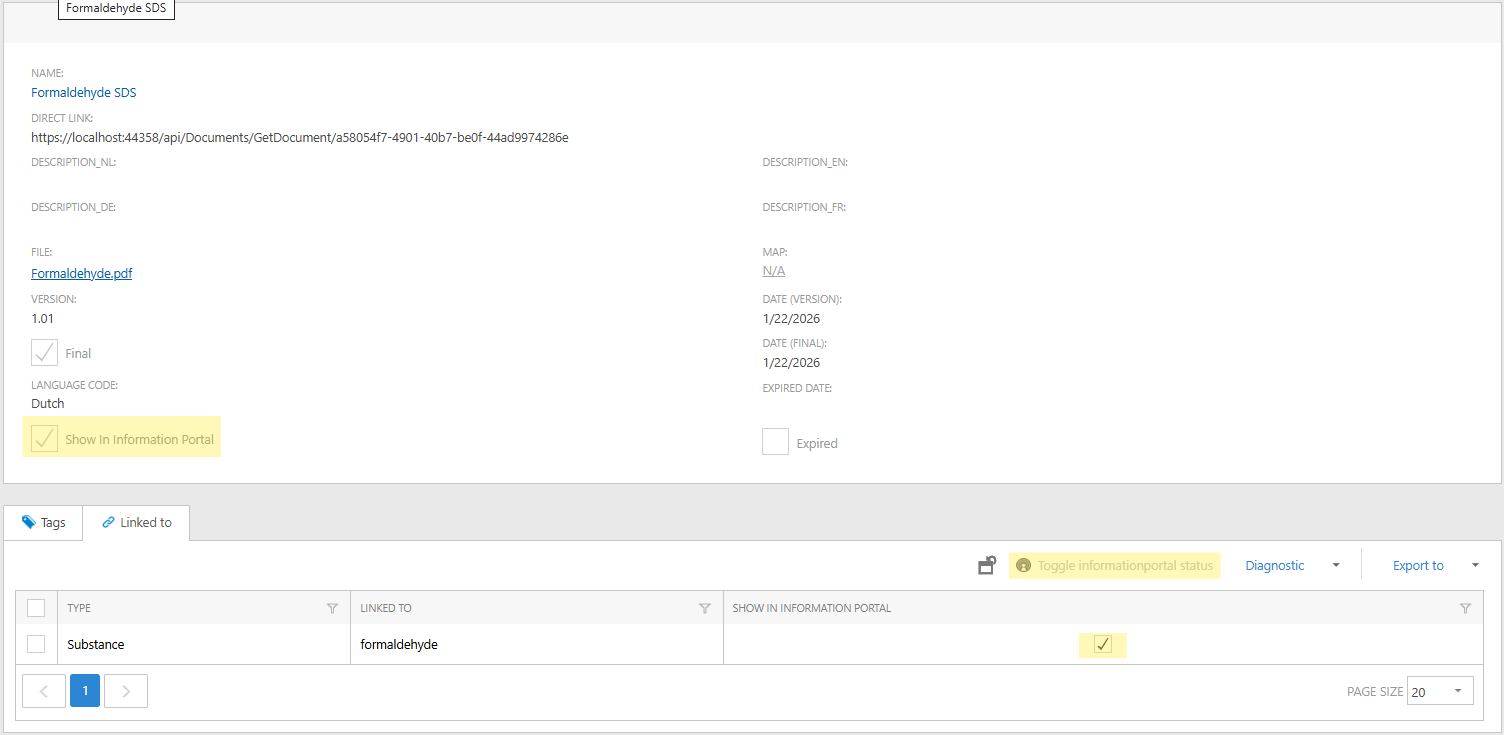
Documents may be excluded from the information portal
From this version onwards, it is possible to exclude certain documents from the information portal. It is also possible to exclude the same document for one substance but not for another. Using the button above the list of linked documents, the document can be excluded from the information portal for selected elements. For the time being, only documents linked to substances are displayed in the information portal. Enabling or disabling linked documents for other elements does not affect their visibility on the information portal.
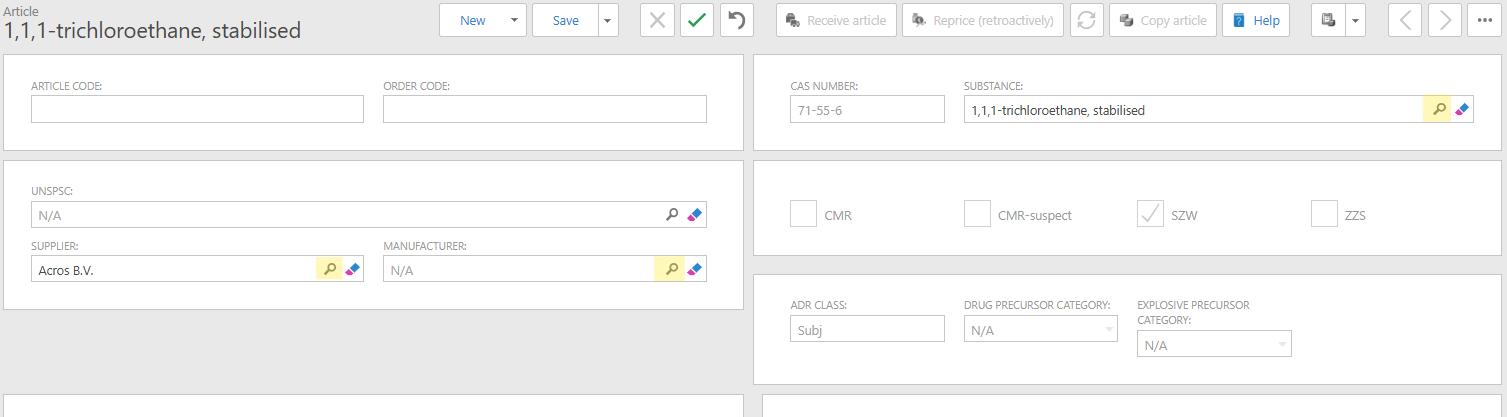
When adding a new item, a new substance and/or supplier can also be added.
In this version, it is now possible to add a new substance and/or supplier from the article screen when adding a new article. This means you no longer need to leave the article screen if the substance or supplier does not yet exist when you create a new article. In the Supplier and Substance fields, you will now see a small plus sign that allows you to add a new supplier or substance.
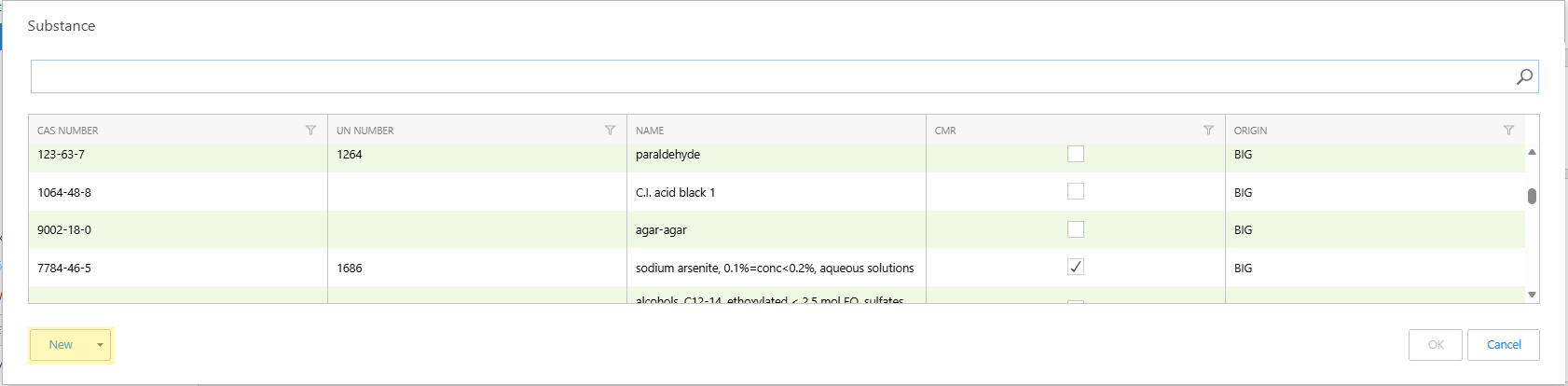
A new substance, supplier or manufacturer can then be added in the search screen.
Results from the lists info API have been expanded
SOFOS 360 offers the possibility to retrieve data about substances and/or articles from another application. To this end, three REST endpoints are provided that can be used to request data. One of these REST endpoints is the Lists Info API, which can be used to request which regulatory lists a CAS number is included in based on that CAS number. The result of this Lists Info API has been expanded with additional information in this version. For example, the fields Name, Fertility, Development, Breastfeeding and SzwListType have been added to the SZW item, and the fields SubstanceName and BALAnnex3Class have been added to the BALAnnex3 item. Additional data has also been included for the other items in the result.
CLP calculation
The CLP calculation has been modified in this version. When you perform a calculation, an intermediate screen with some information is now displayed first. This is because certain fields in the substance can influence the calculation. These are listed on the intermediate screen. In addition, the intermediate screen allows you to indicate whether the existing health and/or environmental classifications must be removed before the calculation is performed. These classifications influence the outcome of the calculation.
Finally, after the calculation, the calculated classifications are displayed on the screen.
ART-module
The optional ART (Advanced REACH Tool) module in Sofos360 (only in combination with the CMR module) is an advanced model used to estimate exposure to hazardous substances in the workplace, particularly through inhalation.
Move substance connections
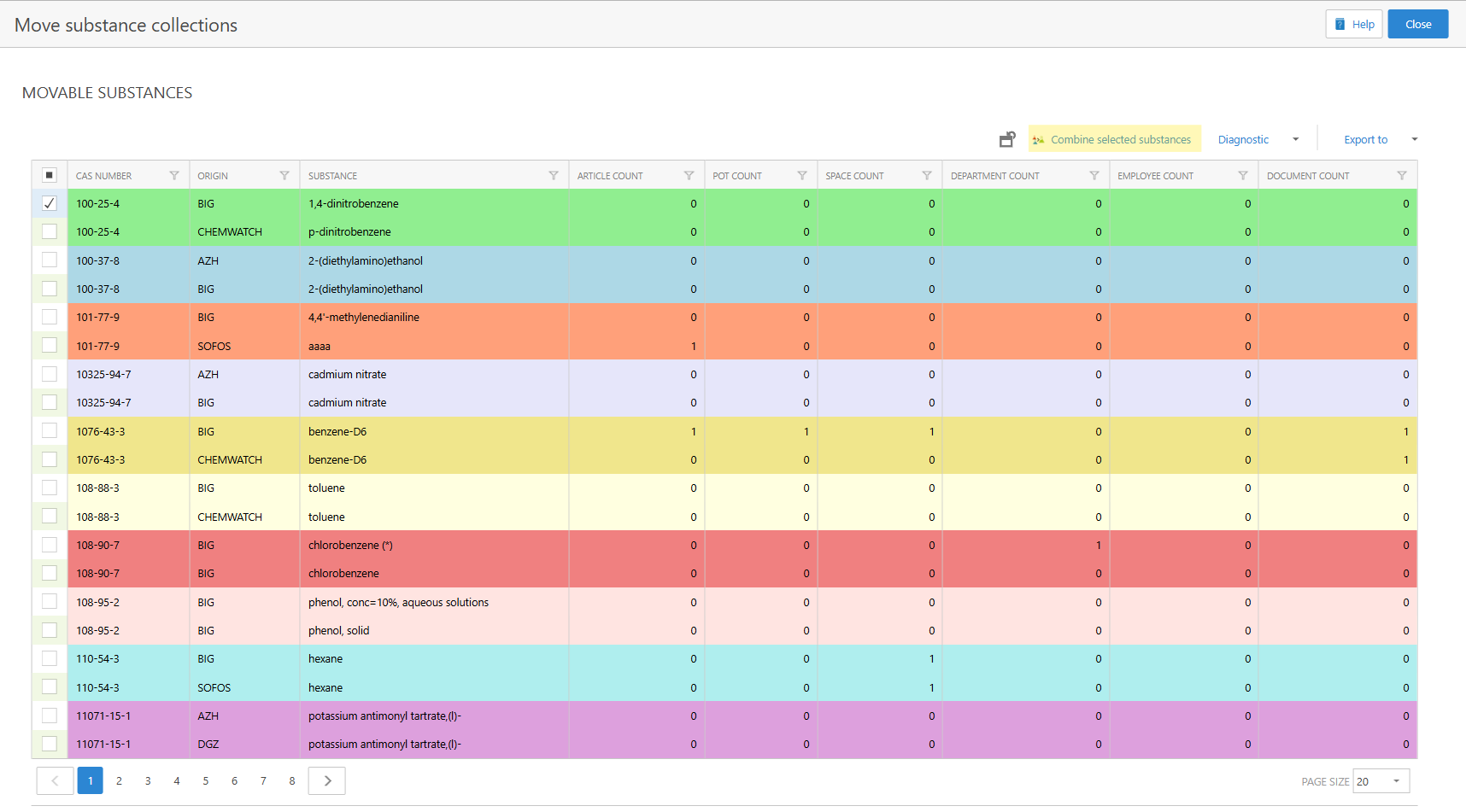
To prevent contamination in your administration, the “Move substance links” function has been added to this version. This allows you to easily consolidate fragmented data from duplicate substances (e.g. from different sources such as BIG or Chemwatch). This functionality allows you to move all active links — such as stock, locations, documents and employees — to a single central target substance. If necessary, you can mark the “empty” substances as “expired”. This allows you to clean up duplicate substances and ensure that all operational information is recorded in one place. You can find this option in the Substance module under the additional menu options (...).
After clicking on the button, all substances with the same CAS number will be displayed in a group, after which the links can be transferred to the “target substance”.
Extra additions
- This version includes the list of explosives precursors. You can retrieve this list via the main menu item “External lists” and have it processed in your substance database. The “Lists” tab in a substance indicates, as with the other lists, whether a substance appears on the list of explosives precursors.
- Containers with the status “Return to supplier” can be put back into use. A new button “Return from supplier” has been added above the list of containers and above the container screen. This button becomes active for containers with the status “Return to supplier” and, once activated, will restore the container to the status it had before it was given the status “Return to supplier”.
- In the Third-party substances database, the so-called DBD number is shown on the first tab. This number can be used for Chemwatch substances to look up the substance on the Chemwatch website. For BIG, AZH and DGZ substances, this number can be provided if you have any questions about the substance.
- From this version onwards, it is possible to enter the expiry date directly for linked documents. In addition, linked documents now also indicate when the expiry date of a document or link has passed. The line with the linked document is then displayed in red.
- The column “Linked departments” has been added to the substance overview. This means that, just like the information portal, the substance overview can now be filtered by linked departments. In other words, it is now easier to display all substances that are linked to a particular department.
- A new column, “Linked roles”, has been added to the user overview, and a new column, “Linked users”, has been added to the authorisation roles overview. The overviews can be filtered by these new columns.
